Atlas for Slack: Database CI/CD Pipeline Notifications
The Atlas Slack app posts notifications about your Atlas Cloud activity to Slack channels. Atlas sends a message when a CI run finishes, a migration is applied, a schema drifts from its expected state, or a migration plan waits for review. Each message links to the full report in Atlas Cloud.
The Slack app is available to Atlas Pro users. You can create a trial account
using the atlas login command.
How It Works
Atlas posts a message to the channel configured for the project whenever an enabled event occurs. The message shows the result, the project, the environment, what triggered it, and a link to the report in Atlas Cloud:
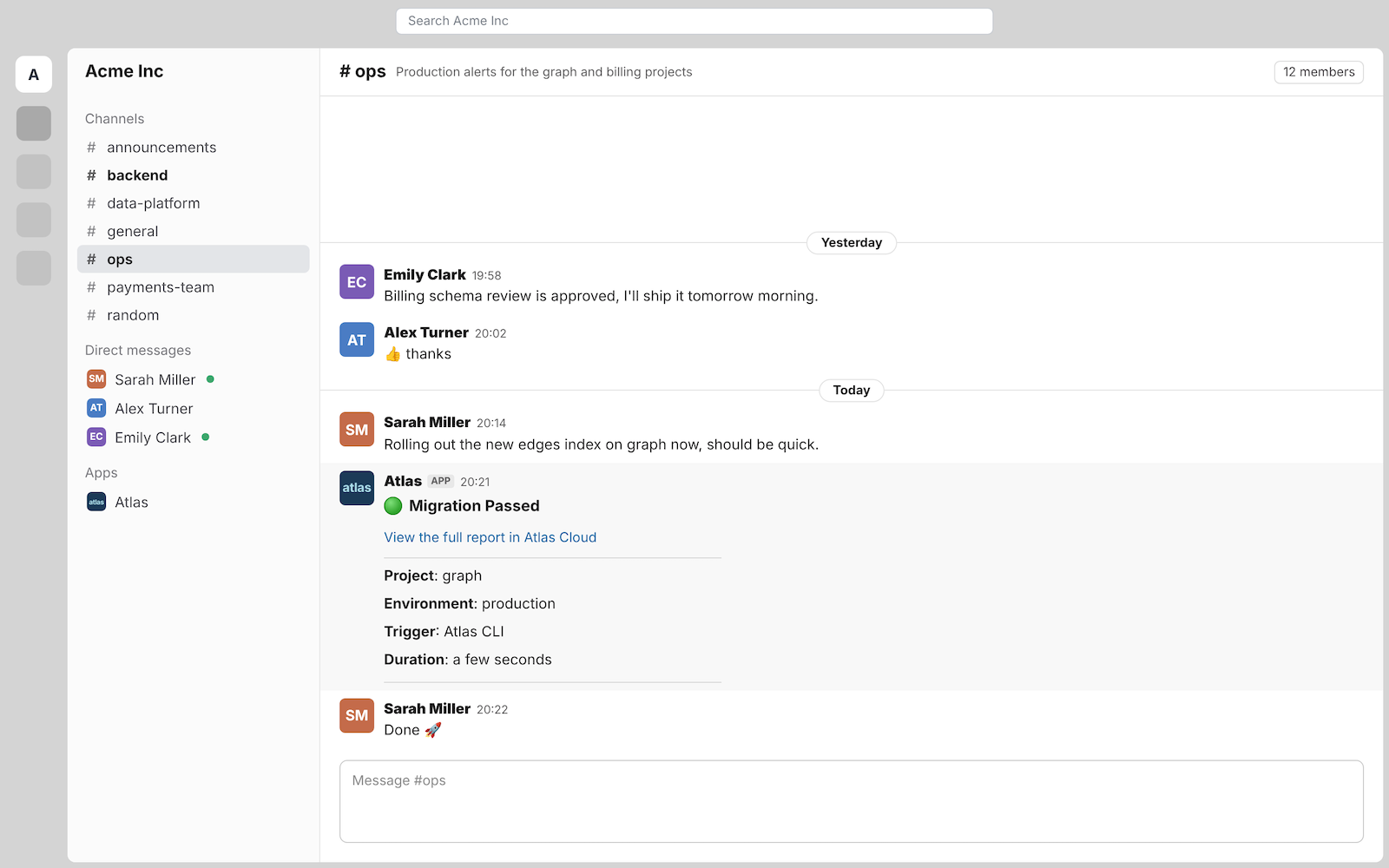
The app only sends notifications. It does not read messages, respond to commands, or act on your behalf in Slack.
Supported events
Atlas can post a message for each of the following events. You choose which ones to enable in the integration settings:
- CI Statuses: a CI run finishes.
- Review Requests: a migration plan requires approval.
- Database Migrations: a schema is applied to a database.
- Drift Events: a database schema drifts from its expected state.
- Schema Changes: the contents of a migration directory change.
- Migration Plan Events: a declarative migration plan is pending review or approval.
- Monitored Schema Changes: a monitoring agent detects a schema change.
Installing the App
The Slack app is installed from the Atlas Cloud settings page. An Atlas Cloud account and permission to install apps in your Slack workspace are required.
Step 1: Open the integrations page
- Log in to Atlas Cloud, or sign up for an account.
- Go to Settings from the menu.
- Click the Integrations tab.
Step 2: Add Atlas to Slack
- Select the "Slack" integration type and click the "Add to Slack" button.
- Slack asks you to authorize Atlas Cloud. Select the workspace and the channel that receives notifications.
- Click Allow.
Slack redirects you back to Atlas Cloud, which shows the new integration and its settings.
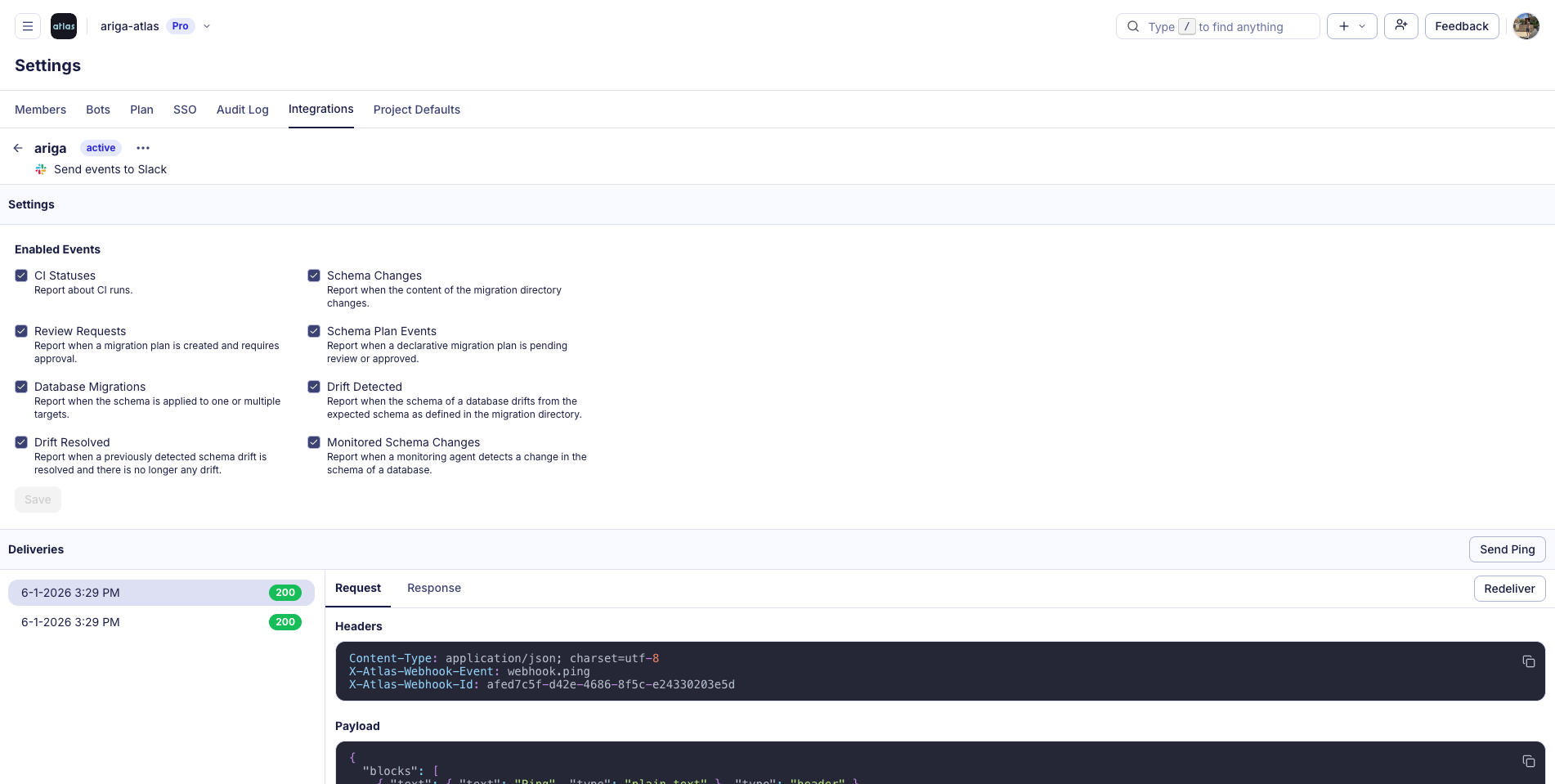
Step 3: Choose events
- In the integration settings, find the list of Enabled Events.
- Check the events you want to receive.
- Click Save.
Step 4: Send a test notification
Click Send Ping to post a test message to the channel. A message in Slack confirms the integration works.
Configuring Channels per Project
Each project (migration directory, declarative schema, or monitor) can send its notifications to its own Slack channel:
- Open the project in Atlas Cloud.
- Go to the project Settings.
- Select the Slack channel for this project's notifications.
Use separate channels to send each team the notifications for the projects it owns.
Data and Privacy
Atlas Cloud stores the following data from Slack:
- The Slack workspace ID.
- The access and refresh tokens issued when you authorize the app.
- The IDs of the channels you configure for notifications.
Atlas uses this data only to post notifications to the configured channels. It does not read channel messages or user data.
To remove the app, delete the Slack integration from Settings > Integrations in Atlas Cloud. Deleting the integration deletes the stored workspace ID, tokens, and channel IDs.
See the Ariga Privacy Policy for how Ariga collects, uses, and retains data.
Support
For help with the Slack app, email support@ariga.io. See Getting Support for other support channels.
 Atlas Cloud
 Drift Detection
 Set Up CI/CD