Purchasing Atlas Pro through AWS Marketplace
Overview
Atlas Pro is available for purchase directly through AWS Marketplace. Subscribing through AWS Marketplace lets you pay for Atlas using your existing AWS account, so charges appear on your consolidated AWS bill and draw down against any AWS commitment (such as an EDP) you may have.
This is an alternative to purchasing directly with a credit card through Stripe. The product and features are identical — only the billing relationship differs.
This guide is organized by topic, so you can jump straight to what you need:
- Subscribing on AWS Marketplace
- Connecting your subscription to Atlas Cloud
- Managing your plan and quotas
- Canceling your subscription
You must be an admin of your Atlas Cloud organization to connect an AWS subscription and to adjust quotas.
Subscribing on AWS Marketplace
- Open the Atlas Pro listing on AWS Marketplace.
- Sign in with the AWS account you want to be billed through.
- Click View purchase options and then Subscribe to complete the subscription.
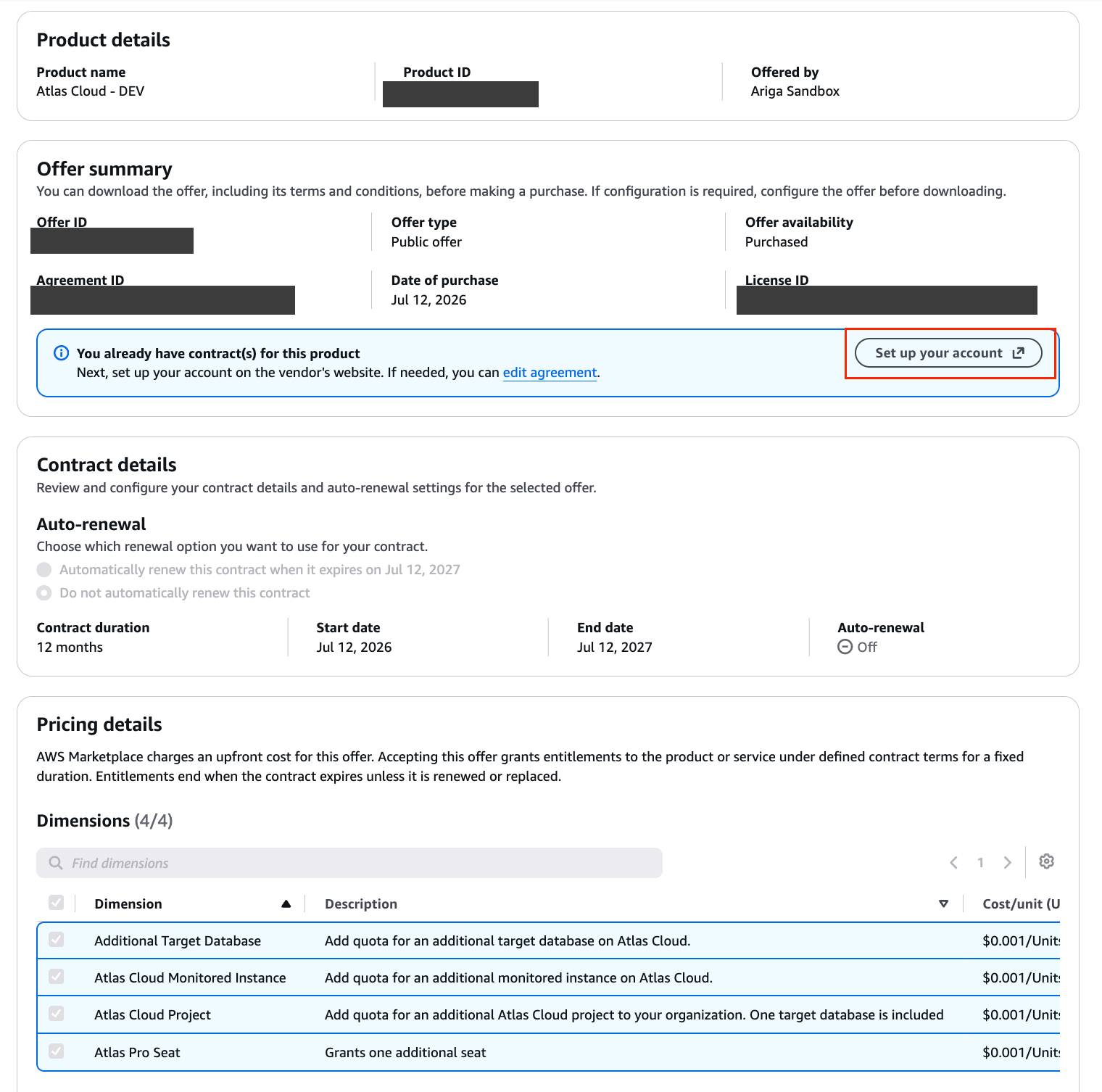
Once the subscription is active, AWS will present a Set up your account button that redirects you to Atlas Cloud to link the subscription to your organization.
If you have negotiated a custom price or contract term with our team, we can extend a private offer through AWS Marketplace. You will receive a link to accept the offer instead of subscribing to the public listing. To request a private offer, chat with us or email hello@ariga.io.
Connecting Your Subscription to Atlas Cloud
After subscribing, click Set up your account on the AWS Marketplace page. This redirects you to Atlas Cloud at
https://auth.atlasgo.cloud/connect-marketplace, carrying your AWS Marketplace subscription so Atlas Cloud can link it
to your organization:
- Log in as an organization admin (or sign up if you do not have an account yet).
- Choose the organization to connect, or select Create a new organization.
- Confirm the connection. Atlas Cloud validates it with AWS and marks your billing as managed through AWS Marketplace.
An AWS subscription can be connected to a single Atlas Cloud organization. If you connect it to the wrong organization, chat with us or email hello@ariga.io to disconnect your AWS account so you can reconnect it to the correct one.
Managing Your Plan
After your subscription is connected, open the Plan tab under Settings in your Atlas Cloud account. The Plan tab shows your current plan, how much of each resource you are using, and lets you make changes at any time.
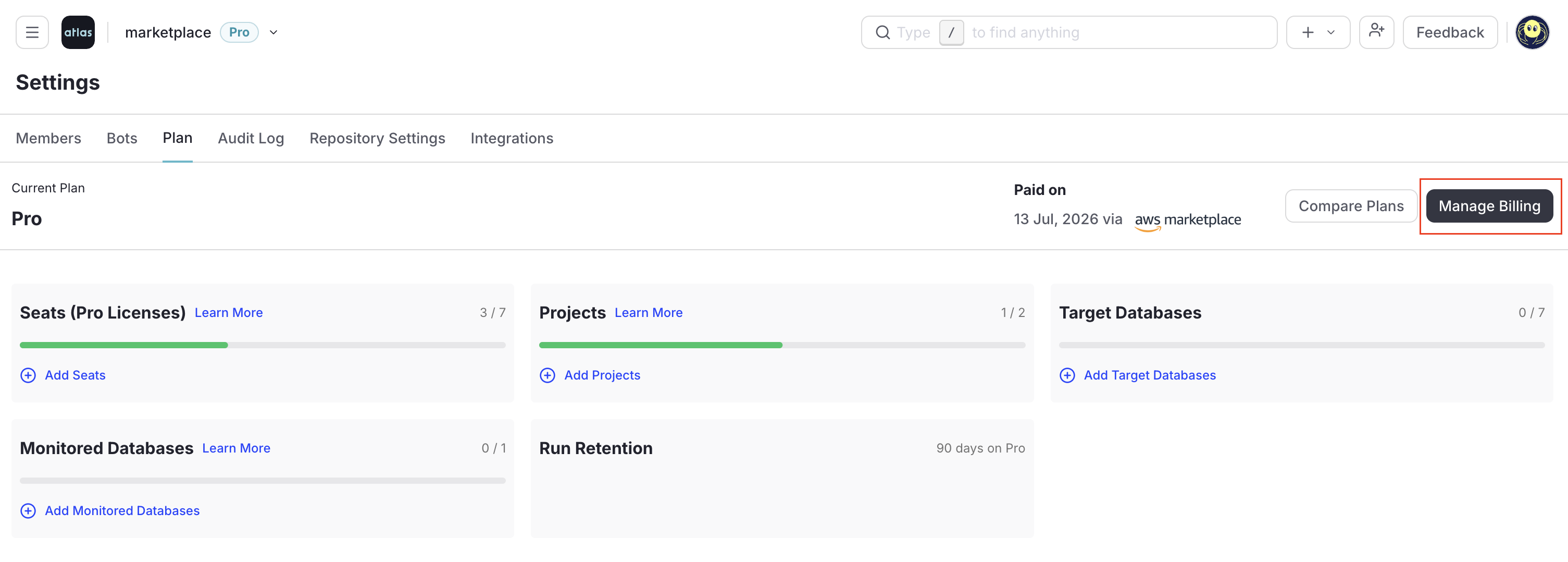
Click Manage Billing to open your AWS Marketplace subscription, where you can review invoices, update payment details, adjust your contract, or cancel by turning off auto-renewal. Use edit agreement to change your purchased quantities at renewal, and the Auto-renewal setting under Contract details to choose whether the contract renews automatically when it expires.
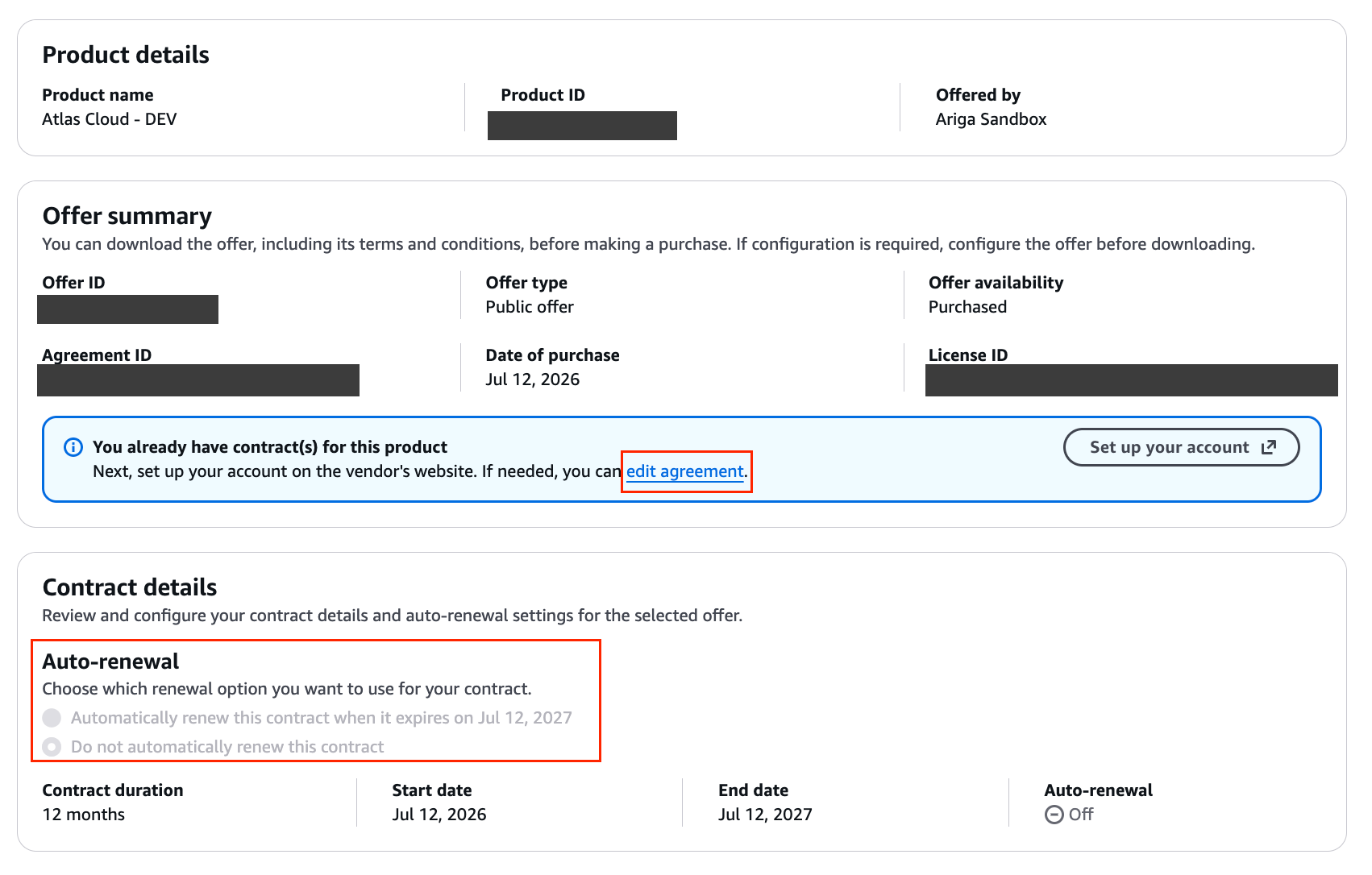
During your current term, you can add seats, projects, target databases, and monitored databases at any time. The change takes effect immediately and AWS applies a prorated charge for the rest of the term. You cannot decrease any quantity below what you have already committed to for the term. For more detail, visit Modifying an existing public contract.
To lower a quota, turn off Auto-renewal under Contract details to let the contract expire, then start a new one at the quantities you need. To avoid any interruption while you set up the new contract, Atlas keeps your access active for 1 day after the contract expires.
If you need help, chat with us or email hello@ariga.io.
Canceling Your Subscription
There is no separate cancel action. To cancel, open your AWS Marketplace subscription (Manage Billing → Contract details) and turn off Auto-renewal. This stops AWS from creating the next subscription term for the product — your current term keeps running until its end date, and nothing renews after it.