Atlas Kubernetes Operator Quickstart
In this guide we will quickly go through setting up the Atlas Operator on a local Kubernetes cluster and demonstrate some of its basic features.
Local Cluster Setup
To get started, you will need a Kubernetes cluster running on your local machine. For the purpose of this guide, we will
use minikube.
To install minikube on macOS, you can use brew:
brew install minikube
For other operating systems, follow the instructions on the official website.
Provision a Local Database
Next, we will install a PostgreSQL database to manage using the Atlas Operator:
kubectl apply -f https://gist.githubusercontent.com/rotemtam/a7489d7b019f30aff7795566debbedcc/raw/53bac2b9d18577fed9e858642092a7f4bcc44a60/db.yaml
This command will install a few resources in your cluster:
- A
Deploymentfor the PostgreSQL database running thepostgres:latestimage. - A
Serviceto expose the database to the cluster. - A
Secretcontaining the database credentials in the Atlas URL format.
View manifest
apiVersion: apps/v1
kind: Deployment
metadata:
  name: postgres
spec:
  selector:
    matchLabels:
      app: postgres
  replicas: 1
  template:
    metadata:
      labels:
        app: postgres
    spec:
      securityContext:
        runAsNonRoot: true
        runAsUser: 999
      containers:
        - name: postgres
          image: postgres:latest
          securityContext:
            allowPrivilegeEscalation: false
            capabilities:
              drop:
                - all
          env:
            - name: POSTGRES_PASSWORD
              value: pass
          ports:
            - containerPort: 5432
              name: postgres
          readinessProbe:
            initialDelaySeconds: 5
            periodSeconds: 2
            timeoutSeconds: 1
            exec:
              command: [ "pg_isready", "-U", "postgres" ]
---
apiVersion: v1
kind: Service
metadata:
  name: postgres
spec:
  selector:
    app: postgres
  ports:
    - name: postgres
      port: 5432
      targetPort: postgres
  type: ClusterIP
---
apiVersion: v1
kind: Secret
metadata:
  name: postgres-credentials
type: Opaque
stringData:
  url: "postgres://postgres:pass@postgres.default:5432/postgres?sslmode=disable&search_path=public"
The url key in the Secret is what the AtlasSchema resource below references, and postgres.default resolves to the Service through in-cluster DNS.
Install the Atlas Operator
Now we can install the Atlas Operator using Helm:
helm install atlas-operator oci://ghcr.io/ariga/charts/atlas-operator
If you use an Atlas Cloud token with the operator in a real cluster, consider enabling chart persistence so the cached grant survives pod restarts.
This command will install the Atlas Operator in your cluster. The Operator includes three important components:
- The
AtlasSchemaCustom Resource Definition (CRD) that supports the declarative migration flow. - The
AtlasMigrationCRD that supports the versioned migrations flow. - A controller that watches for
AtlasSchemaandAtlasMigrationresources and applies the desired schema to the database.
helm install returns before the Operator pod is ready. Verify both deployments are available before
continuing:
kubectl get deployments
NAME             READY   UP-TO-DATE   AVAILABLE   AGE
atlas-operator   1/1     1            1           35s
postgres         1/1     1            1           2m
Apply a Schema
To apply a schema to the database, create a file named atlas-schema.yaml with the following content:
apiVersion: db.atlasgo.io/v1alpha1
kind: AtlasSchema
metadata:
  name: atlasschema-pg
spec:
  urlFrom:
    secretKeyRef:
      key: url
      name: postgres-credentials
  schema:
    sql: |
      create table t1 (
        id int
      );
This manifest includes two important parts:
- The
urlFromfield that references thepostgres-credentialssecret containing the database URL. This tells the Operator where to apply the schema. - The
schemafield that contains the desired state of the database. In this case, we are creating a table namedt1with a single columnid.
To apply the schema, run:
kubectl apply -f atlas-schema.yaml
The Operator will detect the new AtlasSchema resource and apply the schema to the database.
To verify that the schema was applied correctly, let's use the kubectl exec command to connect to the PostgreSQL
database and list the tables:
kubectl exec -it $(kubectl get pods -l app=postgres -o jsonpath='{.items[0].metadata.name}')  -- \
  psql -U postgres -d postgres -c "\d t1"
This command will connect to the PostgreSQL database and show the schema of the t1 table:
                 Table "public.t1"
 Column |  Type   | Collation | Nullable | Default
--------+---------+-----------+----------+---------
 id     | integer |           |          |
Great! You have successfully applied a schema to a PostgreSQL database using the Atlas Operator.
Alongside the schema, the Operator creates a atlasschema-pg-atlas-dev-db deployment to use as a
dev-database, and manages its lifecycle on its own. To point the Operator at an existing
database instead, set the devURL field on the resource.
Evolve the Schema
Let's modify the schema to update the t1 table by adding a new column name. Update the atlas-schema.yaml file
with the following content:
apiVersion: db.atlasgo.io/v1alpha1
kind: AtlasSchema
metadata:
  name: atlasschema-pg
spec:
  urlFrom:
    secretKeyRef:
      key: url
      name: postgres-credentials
  schema:
    sql: |
      create table t1 (
        id int,
        name text -- new column we're adding
      );
Apply the updated schema:
kubectl apply -f atlas-schema.yaml
To verify the schema change, connect to the PostgreSQL database and list the tables:
kubectl exec -it $(kubectl get pods -l app=postgres -o jsonpath='{.items[0].metadata.name}')  -- \
  psql -U postgres -d postgres -c "\d t1"
You should see the updated schema:
                  Table "public.t1"
 Column |  Type   | Collation | Nullable | Default
--------+---------+-----------+----------+---------
 id     | integer |           |          |
 name   | text    |           |          |
Safely Apply Changes
By default, the Operator applies whatever the desired schema implies, including changes that drop data. Atlas Pro analyzes every planned change before it reaches the database and reports destructive changes, backwards-incompatible changes, and migrations that require a table copy, take a table lock, or trigger a full table scan.
Policies control which of those changes require careful planning, either at the pull request stage or before they are applied to the database.
Connect the Operator to Atlas Pro Atlas Pro
Change analysis and review policies require an Atlas Pro account. Create one, or log in to an existing account:
atlas login
The Operator runs in the cluster and authenticates with a bot token rather than your local session. Create one and store it in a secret:
How to create a bot token
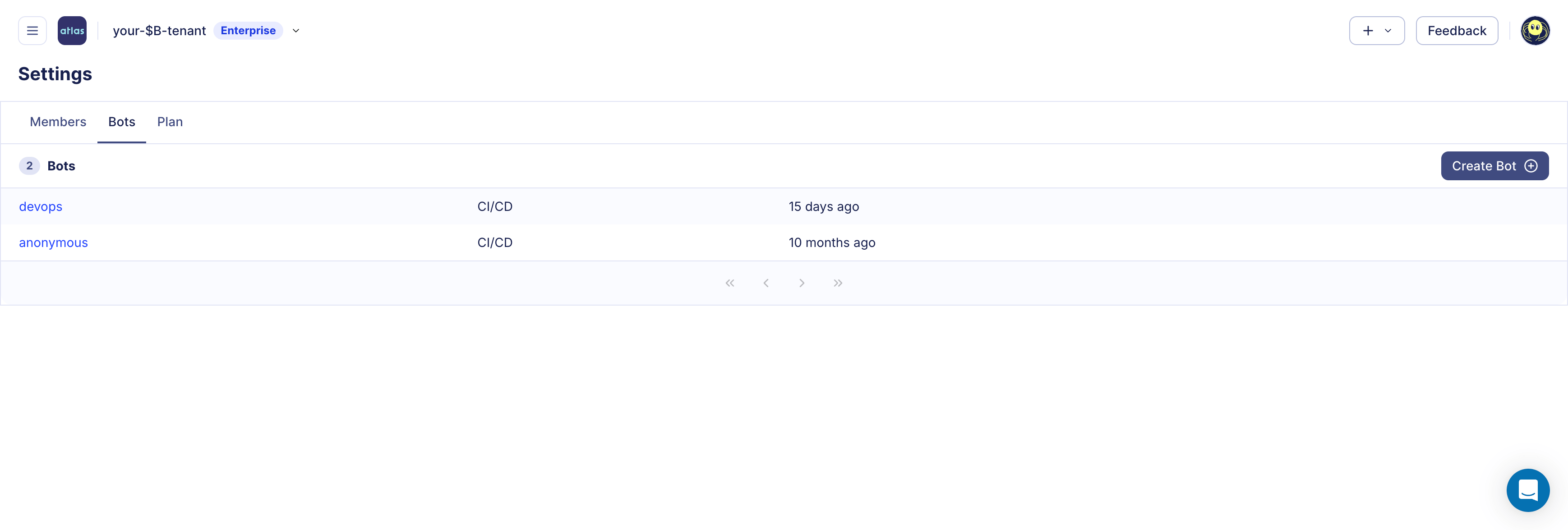
Logged in to Atlas Cloud as an administrator, click ☰ > Settings > Bots in the left navigation, then Create Bot:
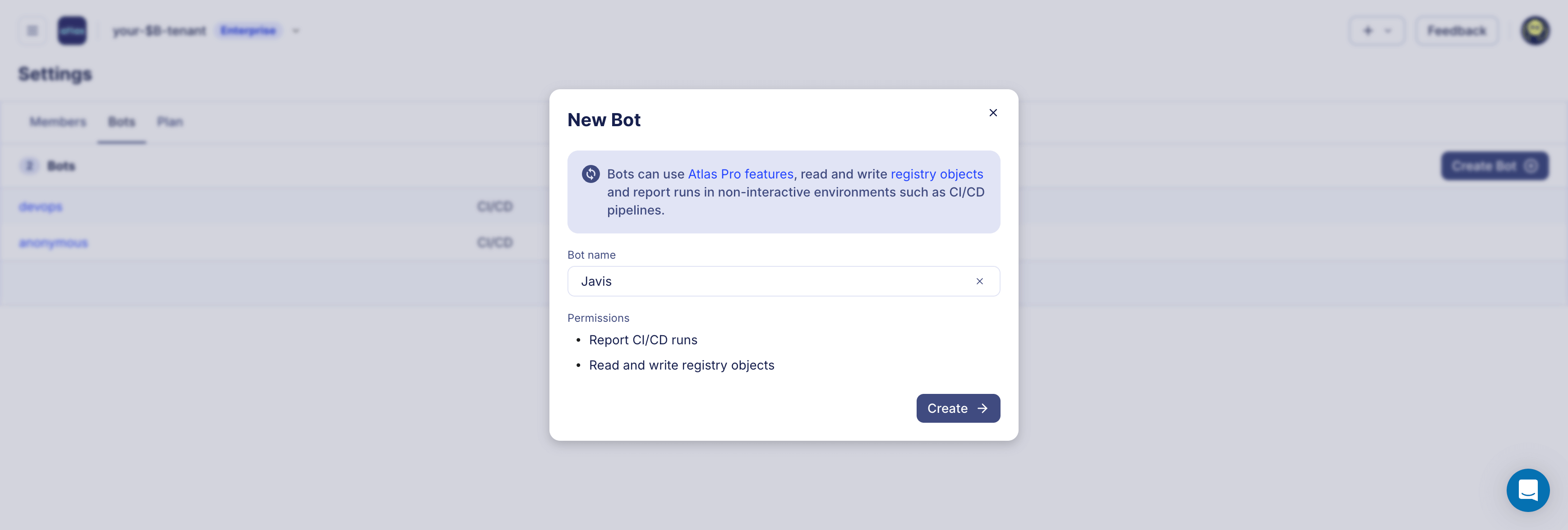
Give the bot a name and click Create:
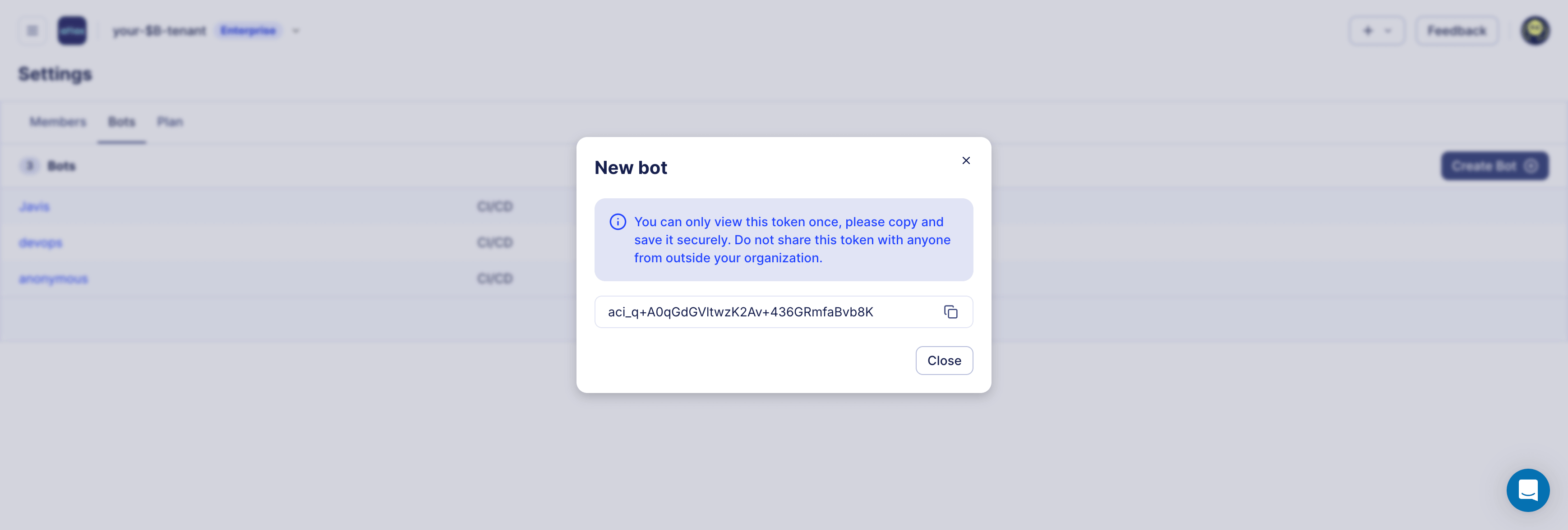
Copy the token and store it in a safe place. You will not be able to see it again:
kubectl create secret generic atlas-token --from-literal=token=<your token here>
From here on, the AtlasSchema resource references that secret:
  cloud:
    tokenFrom:
      secretKeyRef:
        name: atlas-token
        key: token
Dropping a column, or any of the other changes listed above, is sometimes exactly what you intend and sometimes a mistake worth catching. Rather than deciding on its own, the Operator can plan the change, publish the plan, and apply it only once it is approved. On every reconciliation, it looks for an approved plan for the change at hand, and falls back to planning it and waiting:
The next sections move the schema to the Schema Registry, where plans and their approval state are stored, then run one change down each path: approved ahead of the deployment, and approved while the Operator waits.
Publish the schema to the registry
Reviews happen on plans, and plans live in the Schema Registry. Move the schema out of the manifest into
a file, in this example also adding an email column:
CREATE TABLE t1 (
  id int,
  name text,
  email text
);
Next to it, create a project file. It needs a dev-database for planning, but not the URL of the target database: plans are computed against the registry, so developers do not need access to the deployed database.
env "local" {
  schema {
    src = "file://schema.sql"
    repo {
      name = "k8s-quickstart"
    }
  }
  dev = "docker://postgres/16/dev?search_path=public"
}
The first push creates the repository. It cannot carry a tag, because there is no schema definition to tag yet:
atlas schema push --env local
Schema: k8s-quickstart
  -- Atlas URL: atlas://k8s-quickstart
  -- Cloud URL: https://<org>.atlasgo.cloud/schemas/141733920790
Now point the resource at the registry instead of inline SQL, and set a review policy:
apiVersion: db.atlasgo.io/v1alpha1
kind: AtlasSchema
metadata:
  name: atlasschema-pg
spec:
  urlFrom:
    secretKeyRef:
      key: url
      name: postgres-credentials
  cloud:
    tokenFrom:
      secretKeyRef:
        name: atlas-token
        key: token
  policy:
    lint:
      review: WARNING
  schema:
    url: atlas://k8s-quickstart?tag=latest
kubectl apply -f atlas-schema.yaml
kubectl wait --for=condition=Ready atlasschema/atlasschema-pg --timeout=2m
Adding a column carries no diagnostics, so the Operator applies it without pausing. When no approved plan exists for a change, the policy value decides whether the Operator applies it or stops and waits for approval:
review | The Operator waits for approval when |
|---|---|
ERROR | the plan has errors: destructive changes by default, plus any check you classified at error severity |
WARNING | the plan has any diagnostic, errors or warnings |
ALWAYS | on every change, with or without diagnostics |
An approved plan short-circuits all three: the Operator applies it and never stops. The next section creates one ahead of the deployment.
The Operator reconciles when the resource changes. Pushing a new version to the registry does not wake it by itself, so pin an explicit tag and update it as the deployment step, as the next two sections do.
Approve changes ahead of time
Plans can be reviewed and approved before the deployment reaches the cluster. Drop the email column from
schema.sql:
CREATE TABLE t1 (
  id int,
  name text
);
Plan the change from the deployed version to the desired one, and push the plan to the registry. A plan is matched by
the transition it describes, so --from must reference the deployed version. Plan before pushing the new schema, so
latest still points at what is running:
atlas schema plan --env local \
  --from "atlas://k8s-quickstart?tag=latest" \
  --to env://schema.src \
  --name drop-email --push
Planning migration from registry state (1 statement in total):

  -- modify "t1" table:
    -> ALTER TABLE "t1" DROP COLUMN "email";

Analyzing planned statements (1 in total):

  -- destructive changes detected:
    -- L2: Dropping non-virtual column "email" https://atlasgo.io/lint/analyzers#DS103
  -- suggested fix:
    -> Add a pre-migration check to ensure column "email" is NULL before dropping it

? Approve or abort the plan:
  ▸ Abort
    Approve and push
Atlas prints the plan with its diagnostics and waits for a decision. Choosing Approve and push stores it in the
registry as approved:
Plan Status: APPROVED
  -- Atlas URL: atlas://k8s-quickstart/plans/drop-email
  -- Cloud URL: https://<org>.atlasgo.cloud/schemas/141733920790/plans/210453397536
Push the new schema version, then tag it. The bare push moves latest, and the tag gives the Operator an immutable
version to point at:
atlas schema push --env local
atlas schema push --env local k8s-quickstart:v1
k8s-quickstart:v1 is shorthand for --tag v1. In a GitOps setup this tag is usually a commit SHA, a branch name,
or a release version, so the manifest and the schema version it deploys move together.
Roll it out by updating the tag on the resource:
  schema:
    url: atlas://k8s-quickstart?tag=v1
kubectl apply -f atlas-schema.yaml
The change is destructive, but an approved plan exists for exactly this transition, so the Operator applies it without pausing:
INFO  found an approved schema plan, applying
INFO  schema changes are applied
NAME             READY   REASON
atlasschema-pg   True    Applied
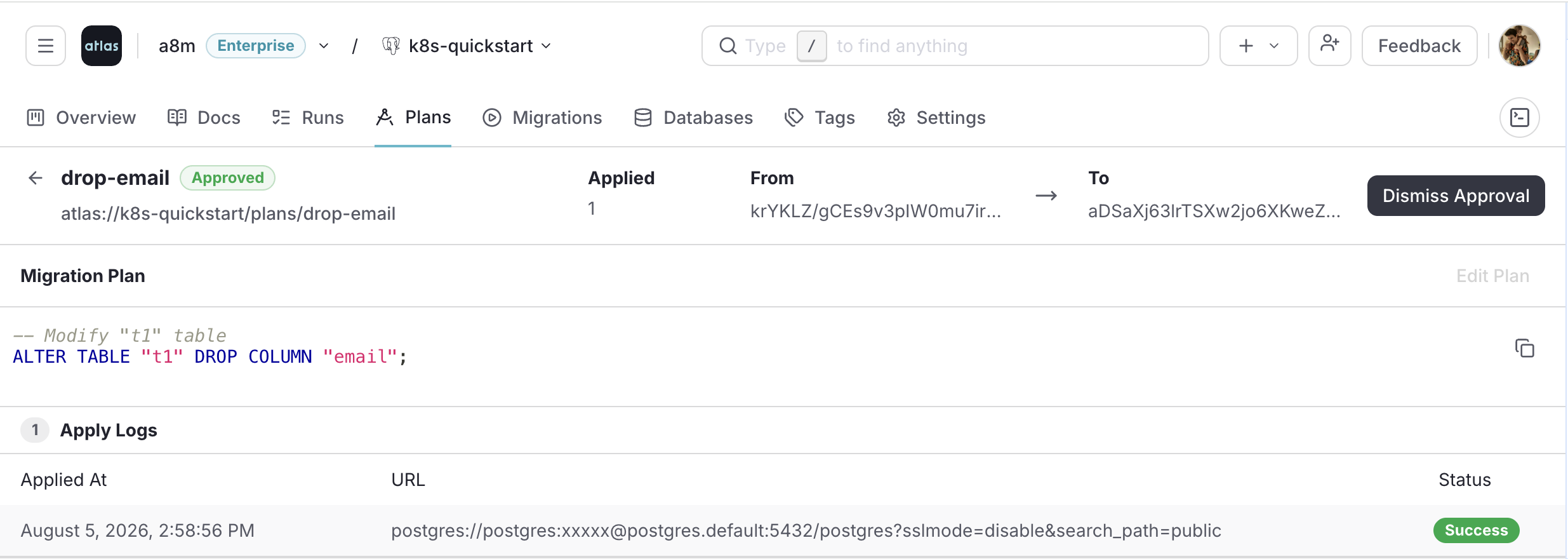
The plan records where it was applied, so you can see which databases already ran it:
In a real project these steps run on the pull request that changes the schema: the plan is pushed in a pending state
(atlas schema plan push --pending) and approved on merge, so the change reaching the cluster was already reviewed.
See Pre-approved migrations for the full workflow.
Approve changes ad-hoc
When no approved plan exists for a transition, the Operator plans the change itself, publishes it, and waits for your approval.
Rename name to full_name. The -- atlas:renamed_from directive makes Atlas plan a rename instead of a drop and
an add, so the column keeps its data:
CREATE TABLE t1 (
  id int,
  -- atlas:renamed_from name
  full_name text
);
atlas schema push --env local
atlas schema push --env local k8s-quickstart:v2
Update the tag on the resource to v2 and apply it. Renaming a column breaks clients that still use the old name,
so it is reported as a backwards-incompatible change. With no approved plan and review: WARNING, the Operator
stops:
kubectl get atlasschema atlasschema-pg \
  -o=jsonpath='{.status.conditions[?(@.type=="Ready")].reason}{"\n"}{.status.planLink}{"\n"}'
ApprovalPending
https://<org>.atlasgo.cloud/schemas/141733920790/plans/210453397537
The database is untouched. Open the PlanLink to review the plan:
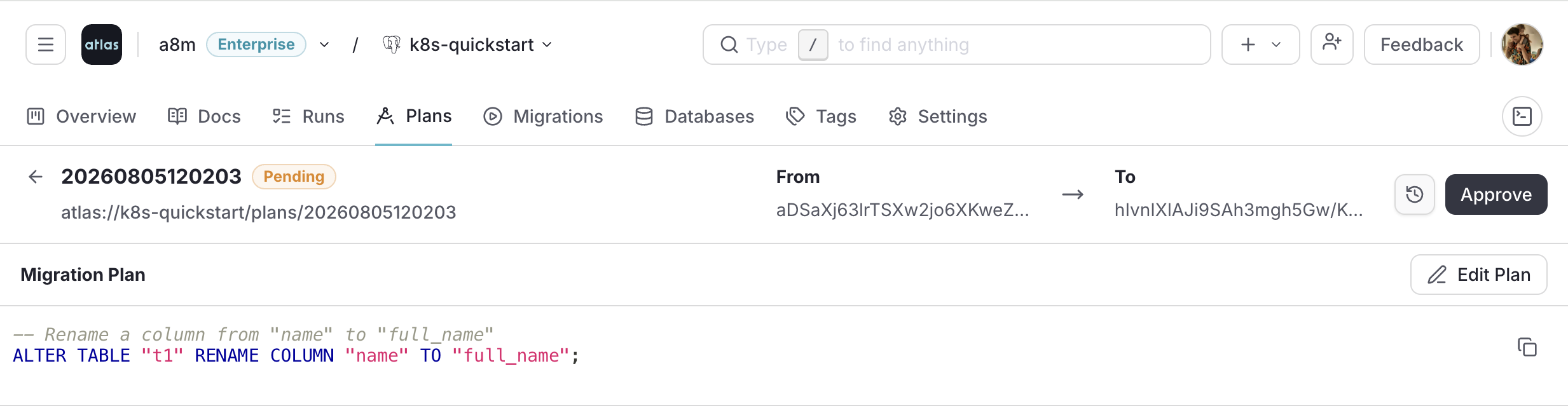
Thanks to the renamed_from directive, the plan renames the column rather than dropping and recreating it, so the
data is preserved. It is still flagged as backwards incompatible for clients that use the old name:
  -- backward incompatible changes detected:
    -- L2: Renaming column "name" to "full_name" https://atlasgo.io/lint/analyzers#BC102
Click Approve, and the Operator applies the plan on its next reconciliation:
kubectl exec -it $(kubectl get pods -l app=postgres --field-selector=status.phase=Running -o jsonpath='{.items[0].metadata.name}')  -- \
  psql -U postgres -d postgres -c "\d t1"
                  Table "public.t1"
  Column   |  Type   | Collation | Nullable | Default
-----------+---------+-----------+----------+---------
 id        | integer |           |          |
 full_name | text    |           |          |
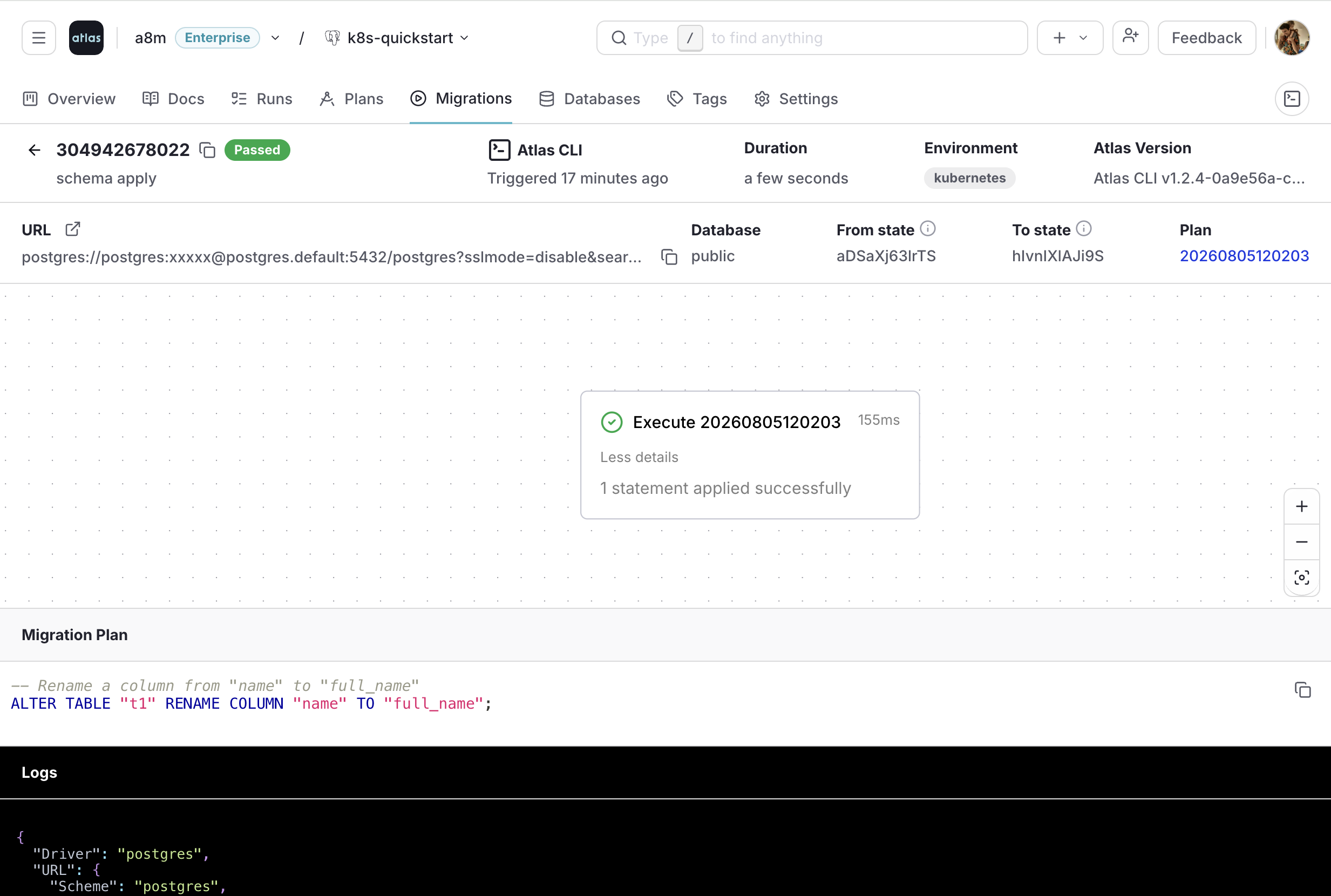
Every apply is reported back to the registry. The run appears under Migrations with the plan it used, the statements it executed, and the logs returned by the Operator:
See Ad-hoc approval for the full workflow, including how to require approval for every change.