Amazon Redshift Database Security as Code (Declarative)
Managing warehouse access through ad-hoc GRANT and REVOKE commands leads to drift, and privileges
scattered across migration files make it hard to answer "who can read this column?" Atlas lets you define
Redshift roles, groups, users, and permissions as code, and automatically plans the changes needed to bring
your cluster in line with the desired state.
This guide covers the declarative workflow. For versioned migrations, see the versioned security guide.
Redshift support, including roles, groups, users, and permissions, is available only to Atlas Pro users. To use this feature, run:
atlas login
Prerequisites
- Atlas installed on your machine (installation guide)
- An Atlas Pro account (run
atlas loginto authenticate) - An Amazon Redshift provisioned cluster or Serverless workgroup, and a second one to use as a dev database
Configuring Atlas
Atlas connects to Redshift over the PostgreSQL wire protocol. Point it at the cluster endpoint, and leave
search_path out of the URL: roles, groups, and users are cluster-wide, so the connection has to be scoped to
the database rather than to a single schema.
export REDSHIFT_URL="redshift://admin:$PROD_PASSWORD@atlas-prod.abc123.us-east-1.redshift.amazonaws.com:5439/analytics"
export REDSHIFT_DEV_URL="redshift://admin:$DEV_PASSWORD@atlas-dev.abc123.us-east-1.redshift.amazonaws.com:5439/analytics"
Roles and permissions are excluded from inspection and schema management by default. Enable them
per-environment with a schema.mode block in your project configuration:
- Atlas DDL (HCL)
- SQL
env "redshift" {
  url = getenv("REDSHIFT_URL")
  dev = getenv("REDSHIFT_DEV_URL")

  schema {
    src = "file://schema.rs.hcl"
    mode {
      roles       = true   // Inspect and manage roles, groups, and users
      permissions = true   // Inspect and manage GRANT / REVOKE
    }
  }
}
env "redshift" {
  url = getenv("REDSHIFT_URL")
  dev = getenv("REDSHIFT_DEV_URL")

  schema {
    src = "file://schema.sql"
    mode {
      roles       = true
      permissions = true
    }
  }
}
roles = true- include roles, groups, and users in inspection and planning.permissions = true- includeGRANT/REVOKEstatements.
Isolating the Dev Database
Redshift roles, groups, and users are cluster-wide rather than scoped to a database, and Atlas replays your desired state on the dev database to normalize it, creating and dropping roles and users as it goes. A second database on the production cluster shares that cluster's roles and users, so its teardown would collide with the live ones.
Give the dev environment a cluster of its own instead. A dedicated Serverless workgroup is the cheapest option, since it bills per query and can sit idle between runs:
aws redshift-serverless create-namespace --namespace-name atlas-dev
aws redshift-serverless create-workgroup \
  --workgroup-name atlas-dev --namespace-name atlas-dev --base-capacity 8
A Serverless workgroup exposes an endpoint just like a provisioned cluster, so the URL keeps the same shape:
export REDSHIFT_DEV_URL="redshift://admin:$DEV_PASSWORD@atlas-dev.123456789012.us-east-1.redshift-serverless.amazonaws.com:5439/analytics"
Either way, keep the dev environment out of your production account's access paths.
The user Atlas connects with is one of them, as are the admin account, IAM and IdP federated identities, and
other teams' roles. A role or user that exists on the cluster but is absent from your desired state is one
Atlas plans to drop, including the caller's own access. Declare each one with external = true (see
External Roles and Users).
Defining Roles, Groups, and Users
Redshift keeps roles, groups, and users apart, and Atlas manages all three. Let's model a reporting warehouse:
| Name | Kind | Purpose |
|---|---|---|
rpt_readonly | RBAC role | Read-only access to the reporting schema |
rpt_writer | RBAC role | Read-write access for the ELT job, inherits from rpt_readonly |
rpt_analysts | Group | Human analysts, granted a narrower slice of the data |
rpt_etl | User | The ELT service account, a member of rpt_writer |
rpt_bi | User | The BI tool's account, a member of rpt_analysts |
- Atlas DDL (HCL)
- SQL
role "rpt_readonly" {
}

role "rpt_writer" {
  member_of = [role.rpt_readonly]
}

// A group is a role carrying the group marker: Redshift keeps
// CREATE GROUP apart from CREATE ROLE.
role "rpt_analysts" {
  group = true
}

user "rpt_etl" {
  conn_limit = 10
  member_of  = [role.rpt_writer]
}

user "rpt_bi" {
  valid_until = "2030-01-01 00:00:00"
  member_of   = [role.rpt_analysts]
}
CREATE ROLE "rpt_readonly";

CREATE ROLE "rpt_writer";
GRANT ROLE "rpt_readonly" TO ROLE "rpt_writer";

CREATE GROUP "rpt_analysts";

CREATE USER "rpt_etl" PASSWORD DISABLE CONNECTION LIMIT 10;
GRANT ROLE "rpt_writer" TO "rpt_etl";

CREATE USER "rpt_bi" PASSWORD DISABLE VALID UNTIL '2030-01-01 00:00:00';
ALTER GROUP "rpt_analysts" ADD USER "rpt_bi";
- Roles, groups, and users - A
roleblock is an RBAC role, the same block withgroup = trueis a group created withCREATE GROUP, and auserblock is a login user. - Inheritance -
member_ofbuilds the hierarchy. A role can be a member of another role, and a user can be a member of both roles and groups. Only users can be members of a group, which is what Redshift allows. - User attributes - A user takes
password,valid_until,superuser,create_db, andconn_limit. Unsetting one plans its negative form, so droppingconn_limitbecomesCONNECTION LIMIT UNLIMITED.
Groups are surfaced as roles carrying group = true, and the membership graph is merged from the group
members and the role grants, so atlas schema inspect returns one flat list of roles, groups, and users
regardless of how they were created.
Defining Permissions
With the roles, groups, and users in place, grant privileges on the objects they need. First, define the schema and tables the permissions will reference:
- Atlas DDL (HCL)
- SQL
schema "reporting" {
}

table "customers" {
  schema = schema.reporting
  column "id" {
    type = int
    null = false
  }
  column "email" {
    type = varchar(255)
    null = false
  }
  column "region" {
    type = varchar(64)
    null = false
  }
}

table "orders" {
  schema = schema.reporting
  column "id" {
    type = int
    null = false
  }
  column "customer_id" {
    type = int
    null = false
  }
  column "total" {
    type = int
    null = false
  }
}
CREATE SCHEMA "reporting";

CREATE TABLE "reporting"."customers" (
  "id" integer NOT NULL,
  "email" character varying(255) NOT NULL,
  "region" character varying(64) NOT NULL
);

CREATE TABLE "reporting"."orders" (
  "id" integer NOT NULL,
  "customer_id" integer NOT NULL,
  "total" integer NOT NULL
);
Next, add the permissions:
- Atlas DDL (HCL)
- SQL
// Reporting reads need access to the schema itself.
permission {
  to         = role.rpt_readonly
  for        = schema.reporting
  privileges = [USAGE]
}

// Read-only: SELECT on every table.
permission {
  for_each   = [table.customers, table.orders]
  for        = each.value
  to         = role.rpt_readonly
  privileges = [SELECT]
}

// The ELT job writes orders.
permission {
  to         = role.rpt_writer
  for        = table.orders
  privileges = [INSERT, UPDATE]
}

// Analysts see whole orders...
permission {
  to         = role.rpt_analysts
  for        = table.orders
  privileges = [SELECT]
}

// ...but only one column of customers, so the PII stays hidden.
permission {
  to         = role.rpt_analysts
  for        = table.customers.column.region
  privileges = [SELECT]
}
-- Reporting reads need access to the schema itself.
GRANT USAGE ON SCHEMA "reporting" TO ROLE "rpt_readonly";

-- Read-only: SELECT on every table.
GRANT SELECT ON TABLE "reporting"."customers" TO ROLE "rpt_readonly";
GRANT SELECT ON TABLE "reporting"."orders" TO ROLE "rpt_readonly";

-- The ELT job writes orders.
GRANT INSERT, UPDATE ON TABLE "reporting"."orders" TO ROLE "rpt_writer";

-- Analysts see whole orders, but only one column of customers.
GRANT SELECT ON TABLE "reporting"."orders" TO GROUP "rpt_analysts";
GRANT SELECT ("region") ON TABLE "reporting"."customers" TO GROUP "rpt_analysts";
-
Grantees -
totakes a reference to arole(whether it is an RBAC role or a group), auser, or thePUBLICkeyword. Atlas writes each one the way Redshift requires:TO ROLE,TO GROUP,TO PUBLIC, or a bare name for a user. -
Targets -
fortakes a schema, table, view, materialized view, function, procedure, or a single column of a table, view, or materialized view. -
Privileges -
privilegesacceptsSELECT,INSERT,UPDATE,DELETE,DROP,REFERENCES,TRUNCATE,ALTER,TRIGGER,RULE,CREATE,USAGE,EXECUTE, andALL. -
Grant option -
grantable = trueaddsWITH GRANT OPTION. Redshift rejects a grant option for a role or a group, so use it with a user grantee:permission {
to = user.rpt_etl
for = table.orders
privileges = [INSERT, UPDATE]
grantable = true
} -
for_eachkeeps permissions DRY: define the grant once, and Atlas expands it for every table at plan time.
Grants on functions and procedures, including the EXECUTE grant Redshift gives PUBLIC on every new
function, are inspected and round-trip through HCL. Migration planning covers grants on schemas, tables,
views, materialized views, and columns.
Applying Changes
Run atlas schema apply to diff the desired state against the cluster and execute the changes:
atlas schema apply --env redshift
Atlas produces a plan that creates each role, group, and user with the statement its kind requires, wires up the memberships, and grants every privilege:
Planning migration statements (16 in total):

  -- create group "rpt_analysts":
    -> CREATE GROUP "rpt_analysts"
  -- create role "rpt_readonly":
    -> CREATE ROLE "rpt_readonly"
  -- create role "rpt_writer":
    -> CREATE ROLE "rpt_writer"
  -- add "rpt_writer" to "rpt_readonly":
    -> GRANT ROLE "rpt_readonly" TO ROLE "rpt_writer"
  -- create user "rpt_bi":
    -> CREATE USER "rpt_bi" PASSWORD DISABLE VALID UNTIL '2030-01-01 00:00:00'
  -- add "rpt_bi" to "rpt_analysts":
    -> ALTER GROUP "rpt_analysts" ADD USER "rpt_bi"
  -- create user "rpt_etl":
    -> CREATE USER "rpt_etl" PASSWORD DISABLE CONNECTION LIMIT 10
  -- add "rpt_etl" to "rpt_writer":
    -> GRANT ROLE "rpt_writer" TO "rpt_etl"
  -- add new schema named "reporting":
    -> CREATE SCHEMA "reporting"
  -- grant on schema "reporting" to "rpt_readonly":
    -> GRANT USAGE ON SCHEMA "reporting" TO ROLE "rpt_readonly"
  -- create "customers" table:
    -> CREATE TABLE "reporting"."customers" ( ... )
  -- grant on table "customers" to "rpt_readonly":
    -> GRANT SELECT ON TABLE "reporting"."customers" TO ROLE "rpt_readonly"
  -- grant on column "region" on table "customers" to "rpt_analysts":
    -> GRANT SELECT ("region") ON TABLE "reporting"."customers" TO GROUP "rpt_analysts"
  -- create "orders" table:
    -> CREATE TABLE "reporting"."orders" ( ... )
  -- grant on table "orders" to "rpt_readonly":
    -> GRANT SELECT ON TABLE "reporting"."orders" TO ROLE "rpt_readonly"
  -- grant on table "orders" to "rpt_writer":
    -> GRANT INSERT, UPDATE ON TABLE "reporting"."orders" TO ROLE "rpt_writer"

-------------------------------------------

? Approve or abort the plan:
  ▸ Approve and apply
    Abort
After approving, verify with atlas schema inspect:
atlas schema inspect --env redshift
The output reflects every role, group, user, and privilege on the cluster: a single, readable snapshot of your security posture.
Changing Access
Because the schema file is the desired state, tightening access is an edit rather than a hand-written
REVOKE. Moving the analysts' grant from a column up to the whole customers table is a two-line change:
permission {
  to         = role.rpt_analysts
  for        = table.customers
  privileges = [SELECT]
}
Atlas plans the revoke before the grant, which is the order Redshift requires: a grantee holding column privileges cannot be granted the table-level ones.
Planning migration statements (2 in total):

  -- revoke on column "region" on table "customers" from "rpt_analysts":
    -> REVOKE SELECT ("region") ON TABLE "reporting"."customers" FROM GROUP "rpt_analysts"
  -- grant on table "customers" to "rpt_analysts":
    -> GRANT SELECT ON TABLE "reporting"."customers" TO GROUP "rpt_analysts"
Removing a role or user from the file works the same way. Atlas revokes its grants first, and drops a member before the roles it belongs to, since Redshift refuses to drop a role or user that still holds a privilege or is still granted to another one.
Passwords
CREATE USER requires a password clause, and Atlas writes a real password only when applying in place, so a
secret never lands in a migration file. In the declarative workflow, add sensitive = ALLOW to the
schema.mode block to let Atlas manage passwords, and supply the value through an
input variable or the
runtimevar data source rather than hardcoding it:
data "runtimevar" "etl_pass" {
  url = "awssecretsmanager://redshift-etl-password?region=us-east-1"
}

env "redshift" {
  url = getenv("REDSHIFT_URL")
  dev = getenv("REDSHIFT_DEV_URL")

  schema {
    src = "file://schema.rs.hcl"
    mode {
      roles       = true
      permissions = true
      sensitive   = ALLOW  // Allow password handling in declarative mode
    }
  }
}
user "rpt_etl" {
  password   = data.runtimevar.etl_pass
  conn_limit = 10
  member_of  = [role.rpt_writer]
}
Inspection never reads a password back, so atlas schema inspect always masks it as <sensitive> and a
password change alone produces no statement outside an in-place apply.
Redshift rejects a superuser whose password is disabled, so a user with superuser = true must define a
password. For the same reason, dropping a superuser has no reverse statement: the password it would need to
be re-created with cannot be inspected.
External Roles and Users
A cluster carries identities Atlas did not create: the admin account, IAM and IdP federated identities, and
roles owned by other teams. Mark them external = true and Atlas will reference them in grants and
memberships without ever creating, altering, or dropping them:
- Atlas DDL (HCL)
- SQL
// The cluster admin, and the identity Atlas connects with.
user "admin" {
  external = true
}

// A role owned by another team.
role "corp_analysts" {
  external = true
}

role "rpt_readonly" {
  member_of = [role.corp_analysts]
}
CREATE ROLE "rpt_readonly";
GRANT ROLE "corp_analysts" TO ROLE "rpt_readonly";
External is a statement of intent that Atlas reads from your desired state. Ownership in the catalog cannot stand in for it: an owner is mutable, and owning a role or user does not even grant the right to drop it.
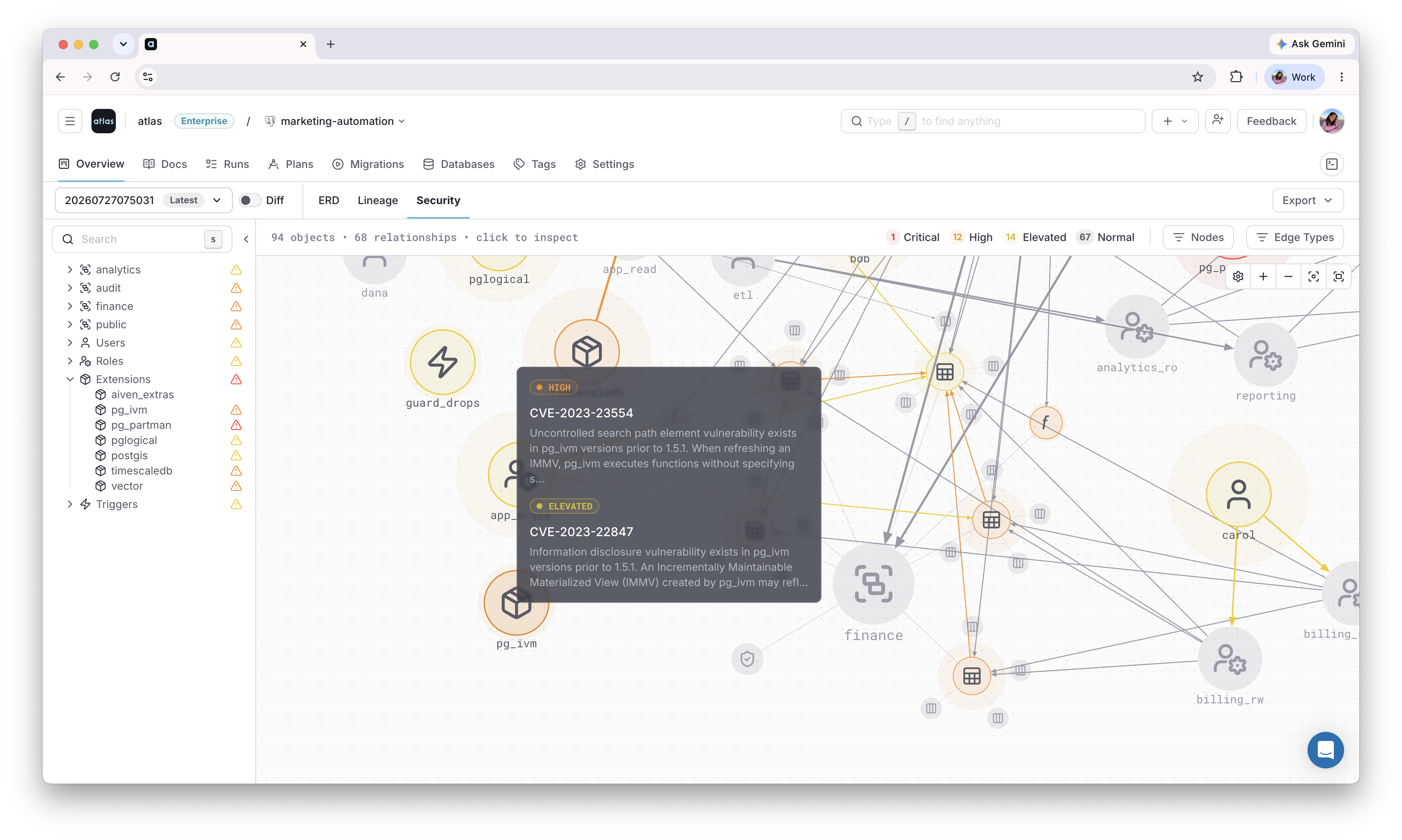
Visualize on Atlas Registry
Once these roles, groups, and grants are applied, use the Security Graph to see how they connect across the repository, and flag any risky access patterns automatically.
Next Steps
- Versioned workflow - manage security changes as versioned migration files
- Redshift schema migrations - inspect, diff, and apply Redshift schemas
- HCL reference - all role, user, and permission attributes
- CI/CD setup - deploy declarative schemas to production
Have questions? Feedback? Find our team on our Discord server or schedule a demo.